Sunday, May 31, 2020

My Three Main Takeaways from Class # 3


# 1. Universal Design for Learning: An in Depth Review

Throughout our third class we spent a large portion of our time discussing UDL and its impact on today's classrooms.  We were able to develop a better understanding of how it began, what it is,  the steps taken by educational leaders to bring it to the forfront, the relationship it has to assistive technology and various other topics surrounding it.  I was quite eager and enthusiastic to learn more about UDL because this is the hot topic in the field of teaching at the moment.  My own school principal had recently sent me the Novak videos and information the week before our class.  It was very refreshing to be learning about a set of principles that I will actually be using in my classroom in the near future.  I enjoyed this discussion a lot because I want to learn as much as I can about UDL so I can share what I have learned with my colleagues at school.  
The following are some of the UDL resources and activities shared with us during class three:

*  UDL Journey Powerpoint
This was a wonderful way to learn about the journey that this movement has made since its conception.
There definitely has been a lot of hard work done by educators and many others to push this form of curriculum into the mainstream.
I liked how it showed respect and appreciation for the previous ways but states that there was something missing.
I believe this perfectly describes today's curriculum because I feel exactly the same way.
Even though there are dedicated and hardworking teachers and specialists who are doing everything they can with the resources available we are still not reaching a vast amount of students in our school system.

"traditional curricula is what has the disability"


www.cast.org       
We were introduced to this website which is an amazing resource for Universal Design for Learning.
It outlines everything you need to know about UDL with videos, charts, activities, resources, research, texthelp, etc. Its also a great tool for remote learning. I became very familiar with this website as I worked on my R&W for google assignment.
The following is a video on the cast website that tells all about the UDL philosophy.  Also attached are the UDL guidelines that can be found in more detail on the cast website.


* Dinner Party - (Katie Novak)
This was a group activity we did during class.  Our challenge was to host a dinner party for 30 - 40 guests who had different kinds of dietary needs, ie. allergies, vegetarian, Paleo diets, Keto diets, etc.  We had to collaborate on what we might serve to meet all the needs of our guests.  This was an excellent activity to illustrate what a teacher must do in the classroom to meet all the needs of their students.  My group planned a variety of individual meals for each dietary concern and this took a great deal of time to do.  At the end of this activity we were able to see that providing a buffet would have been more affective and much easier to plan.  Guests could then choose what they wanted/needed as opposed to us doing the decision making for them.  This was an excellent way to show how UDL should be used in a classroom of students who have different needs.  It was also a good way to show how UDL is not like the Differentiated Instruction (DI) that we are all famialiar with. This type of learning is less teacher led and more student led.  When students are given a selection of tools or resources to choose from they can all have equal opportunities to learn.  This also makes it easier on the teacher when planning.
A typical classroom today can look like the following:


The following is a video of Katie Novak - a UDL expert talking about the dinner party analogy.


Please note:  Katie Novak has many videos on youtube.  She has also written articles for the cast organization and is a leading expert in the UDL Field.

Some other UDL sites to visit:
http://udlssrsb.ednet.ns.ca/ 
http://udlssrsb.ednet.ns.ca/udl-placemat-of-apps.html
http://mrmillett.weebly.com/


#2. Read and Write for Google
During class three we also revisited and focused on the read and write toolbars.  Read and Write for Google is definitely one of the best tools for reading and writing that I have ever seen.  It is a perfect UDL tool that can be matched to help every student.  The following video is a brief explanation of read and write for google.


Over the past month I have been learning a lot about read and write for google while completing my
group assignment.   Its one of those things where you just have to try it out for yourself.  I can think of so many students I have taught in the past who could have benefitted from using this amazing tool.   I really look forward to using it with my future students!
Read and Write for Google has so many features.  Some of these features are:
* It is available in English and French and can read text aloud
* It allows for translations of words into other languages (French, Spanish, and Portuguese).
* It allows student to use dictation instead of writing.
* It can explain text using dictionary and picture dictionary.
* It can give word suggestions when using word prediction.
* It works with Google docs, PDF files, and ePubs.
* Most importantly, it allows students to become independent and helps build confidence. 

Some of the students who could benefit include:
*  students with LDs
*  language disorders 
*  attention problems (ADHD)
*  organization difficulties  
*  speech problems
*  reluctant readers 
*  reluctant writers
*  visually impaired 
*  cognitive delays
*  ESL 
*  fine motor or handwriting difficulties
*  physically impaired  
*  comprehension problems
*  auditory learners

Helpful Videos:      http://bit.ly/RWGoogleVideos

Tech Support Questions:     http://support.texthelp.com


# 3. Apps 

Phonemic Awareness Bubbles
The purpose of this app is to help build foundational reading skills for a child. 
This app helps a child develop their ability to listen for and discern sounds at the beginnings of words.
This is a wonderful reading remediation app.
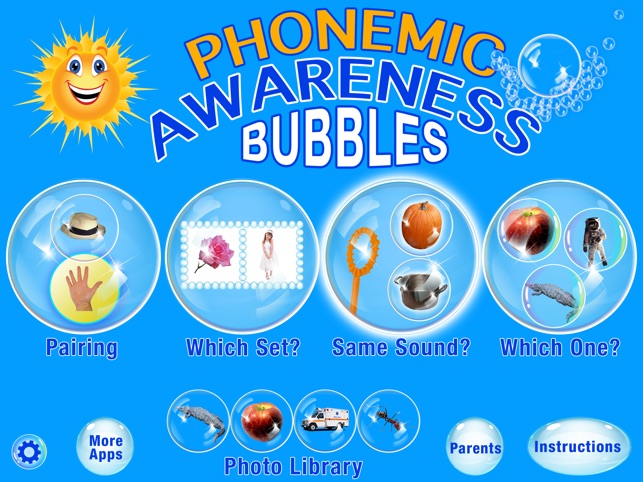

PHONEMIC AWARENESS BUBBLES on the App Store

Speech Tutor
This app combines content from 4 of the best selling apps in the industry. The material has been fine-tuned and combined so that everything can be accessed easily without the need to use multiple apps for students with different needs. There are dozens of videos that “dive inside” the mouth to show tongue placement for articulation and so many other activities and resources.

App — Speech Tutor

Immersive Reader
This is a free tool that uses techniques to improve reading for people regardless of their age or ability.  It can help improve comprehension and encourages independent reading.  Its simple and free to use.
This is a great compensatory reading tool.


Keeble
Keeble works in two ways - making it easier for you to type, and speeding up your typing. Visually, it’s highly customizable - from colors to a wide range of fonts, including a dyslexia font. It’s also designed to respond in ways which help you reduce typos and slipups– selecting keys on release and speaking as you type for example.  The predictive text feature offers suggestions based on what you’re typing. This not only saves you keystrokes - it can reduce typing effort by up to 60%.  

Keeble App from AssistiveWare – Another 3rd Party Keyboard Option ...

Iris
A software which makes Monitors healthy for the eyes.  Many students can suffer from computer eye strain or irritation and this is a free blue light filter which can help to correct those problems.

Iris app icon

Cowriter
This is a google chrome extension.  
It has word prediction that is grammar smart.  
It is inventive and  spelling aware. 
It's Speech recognition allows you to speak while it writes for you.

Co:Writer
Voice Dream Writer
Voice Dream Writer is an amazing, full-featured writing app which includes many features not found in any other app. Anyone who works with struggling writers needs to add Voice Dream Writer to their technology toolkit.  Some of its key features include: Text to speech, Proofreading, Formatting, Outline view, Word finder, Distraction free, iCloud sync, Preview and Print and Export. A great compensatory app.

Voice Dream Writer on the App Store


This is a quote that I came across that I just love!  
 We as educators must follow this way of thinking! 


Friday, May 8, 2020

Review and Critique of Research Paper

"Take The Pencil Out Of The Process" 
By Leslie Broun

"Which is more important - being able to write the answer or knowing the answer?"

    In this article, Leslie Broun discusses the challenges and obstacles faced by students who struggle with handwriting.  Although, her main focus is on students with Autism she also includes students with all types of disabilities in her research.  According to Broun, students struggle with handwriting for many different reasons.  For Autistic and Aspergers students researchers have found significant differences and abnormalities in parts of the brain that interfer with the act of handwriting.  For other learners, handwriting difficulties could be caused by learning disablilities like Dysgraphia or Dyscriptia.  Sometimes it is even caused by stress, anxiety, the ability to think of letters and words on demand or physically a student could have weak motor skills that prohibit them from writing.  
    Broun believes that being forced to hand write is the most significant impediment to academic success.  The student's quality and quantity of response is diminished when they are expected to demonstrate what they know with paper and pencil.  Often times, intellectual and cognitive processing take a backseat to the effort involved for some students to write.
    My views have definitely changed over the years on this topic.  When I first started teaching I was a strong advocate for all of the reasons why students should write and not use a keyboard.  In the past, I would have agreed that it cost too much, it made the students too lazy, being able to print is more important, it wouldn't be fair to other students, etc.  After teaching so many students over the years who have struggled and have never shown improvements with handwriting my opinion has completely changed!  I became so tired and frustrated (myself) teaching students who struggled daily with handwriting.  Watching how it affected every area of their learning as well as their attitudes towards school and class activities. The implementation of technology at the time was not common.  I truly felt so bad for these students and at a loss as to how I could help them.    
    My belief now is that teachers must provide students with all the materials and strategies needed to promote learning.  Whatever they need to show what they know is what we need to provide them.  We cannot let obstacles like lack of funding stop us from helping our students.  I plan to use the UDL principles for learning now and throughout the rest of my teaching career.

The following video is discussed in Broun's article:  "A Child's Voice" - This video is about a young girl named Carly Fleischmann ( a non-verbal student with Autism) who uses a keyboard to not only write but to communicate.


    Today our culture revolves around technology, ie. texting, snapchat, twitter, google, facebook, messenger,etc.  Learning how to use a keyboard is an essential skill in many ways.  Most people spend the majority of their time on a computer - not writing!  It maybe important to know how to write our name and some other personal information about ourselves but technology is the future and we need to prepare our students to live in this world.
    According to Broun, there should be early substitution of the keyboard for students experiencing difficulty with graphomotor skills.  I really like that she outlines steps that educators should take before deciding if a student should begin using a keyboard.  I agree that its important to know for sure that a particular child needs the keyboard before its actually given to them.  

Some of the information we must gather and teach includes:

* Observe and evaluate student's abilities to form letters and numerals.
* Ascertain how the student relates to the computer.
* Is the student able to match?
* Is the student able to identify letters?
* Does the student have a sight vocabulary?
* Letter location skills.
* Hand over hand guidance at the very beginning.
* Student needs to observe the cause and effect relationship of hitting a key.
* Font size and type is important.
* Teaching the vocabulary of keyboarding is important.

The following are some Keyboard sites to help teach about keyboarding:


The following is a game that can be used to teach keyboarding.


I believe the most important thing to remember from this article is that handwriting is not an essential component of literacy.  The thought process is the most important element.  The writing process does not start when a pencil hits the paper, it begins way before than.  Learning to use a keyboard can open up many doors for many of our learners.  As teachers, we need to always find a way to support our students and provide them with whatever they need to succeed!   


My Three Main Takeaways From Class # 2

# 1.  Through Your Child's Eyes


Explore www.understood.org -
In this activity we were able to become familiar with the website: 

https://www.understood.org/
During this activity we took part in a simulation where we pretended to have a specific disability. We were given choices of common disabilities seen within most classrooms, ie. writing issues, reading issues, attention issues, math issues and organization issues. I chose attention issues because I feel this is becoming more prevalent in today's classrooms and in my own classroom this is an issue that a few students have to deal with everyday.

My simulation activity involved me matching up animals with their habitats. It was not a difficult task on its own but in the simulation there were classroom noises and distractions added so I became quite distracted myself while completing the task. I was able to walk in the shoes of a student who experienced attention issues. It helped me develop a true understanding of how the student feels. Once the simulation was over I listened to a little girl who has attention issues as she shares her feelings on how students in her class often make fun of her because they say she is "always in lala land" or "spacing out". She talks about supports she finds helpful, like, walks, doodling, fidget tools, etc. At the end of the simulation there is also an expert that provides some strategies and analogies for the disability that were quite helpful and practical.

Along with simulations, this website offers lots of support to families, educators and young adults who struggle with learning disabilities. It offers lots of relevant topics for UDL and is a great reference guide for defining disabilities and providing actual case studies of people with a specific disablity. There is also a youtube channel that you can subscribe to for free:


https://www.youtube.com/channel/UCbXMoF3-74hj2lhLCIp3C-A

I feel as educators, it is so important that we are aware of the challenges that students with disabilities face on a daily basis. Our support needs to be customized to meet the exact needs of a student.
This is one of the best resources I have learned about in recent years! I will definitely be using Understood in the future!

In addtion to understood.org we also had the opportunity to take part in another simulation activity on the website:  visionsimulations.com
On this website we were able to experience what it feels like to have different types of vision difficulties, such as, blurry vision, ghosting, glared vision, halos, starbursting, loss of content, visual snow, trails and blue field phenomena. I was unaware of all the names of vision issues that people can have! This website touched close to home for me because my father is living with some degenerative vision problems. This has affected his daily life in many ways! He is no longer as independent as he wants to be. He can't drive at night or read or go watch hockey games, etc. I know that he finds all these losses very difficult. I will definitely try some of the apps for vision with him. Maybe they will give him back some independence!

#2. Book Creator
Book Creator is a simple tool for creating awesome digital books for all grade levels You can create your own teaching resources or have your students take the reins. It is an interactive and collaborative tool. You can combine text, images, audio and video. It provides accessibility to all learners.


Edu App Center

During our second class we were all given the opportunity to present our eBooks. The topic for all our books was to define ten assistive technology terms. We worked in groups to collaborate our ideas and to become familiar with this online tool. I really enjoyed how original everyone's books were and it was very helpful for remembering and understanding the terms. During this assignment I learned a lot about bookcreator by just trial and error but there are also many youtube videos available to help guide a new user.   

Here is one example: https://youtu.be/p2gfERXWtCQ 

There are many ways to use Book Creator in your Classroom. 

The following are some examples:
1. About Me Books                               
2. Science Experiments                         
3. Musical eBooks                                 
4. Create Comic Books                          
5. Retell Your Favourite Stories             
6. Teach Math                                        
7. Photo Books                                       
8. Poetry Books                                      
9. Portfolios                                             
10. Interactive Word Games
11. Write a story
12. Teach Phonics
13. Teach a Language
14. Teach Procedures and Routines
15. ABC Books
16. Research Projects
17. Teach Direct Speech
18. Identify Shapes
19. Use as a Presentation Tool
20. Make Adventure Books


# 3. Apps to Narrow the Gaps
During our second class we discussed compensatory strategies which are simply ways to use our strengths to compensate for our weaknesses. Many of these apps do just that! They can enhance a students strengths and provide help/assistance with their weaknesses. They make learning more accessible for all students!


The following are some of the apps/tools we learned about:
            
1. https://newsela.com/
Provides schools with up to date, accessible content that supports every learner. On this app you can match current news to each students reading level. The following video will give you some examples of how it can be used in your classroom.      


2. https://tarheelreader.org/
Tar Heel Reader is a collection of free, easy-to-read, and accessible books on a wide range of topics. Each book can be speech enabled and accessed using multiple ports. You can also write your own books using pictures from the huge collection at Flickr or pictures you upload.


3. Snapverter
This an add-on for Read and Write for google that converts printed documents and inaccessible digital files into readable PDF files for easy sharing and reading aloud in Google Drive. I use google drive everyday and I did not know about this wonderful tool before our class.


4. https://www.voicedream.com/
This is the world's most accessible reading tool. It has advanced text to speech and can be taylored to suit every reading style from completely auditory to completely visual or a combination of both.


Voice Dream Reader by Voice Dream LLC              


5. Apple Device Features
On any Apple device there are features designed to help people with disabilities use technology more easily. Some of these features include:

1. Text-to-Speech - Can read text out loud for people with limited vision.

2. Speech-Recognition - Allows users with limited mobility to control their device.

3. Invert Colors - Changes the display values to create more contrast for vision impairment.

4. Magnifier - Turns your devices camera into a magnifying glass for vision difficulties.

5. Larger Text Sizes - Can make your text bigger and easier to see.

6. Zoom - To see larger text or images at any time. Double tap with three fingers or drag three fingers around the screen to see better.

7. Siri - Gives the user the ability to use voice commands to control calls, send messages, google searches. Wonderful for Physical Disabilities!

8. Guided Access - Allows you to lock in one app and set a timer. This one is my favorite!


6. Reading Remediation Apps
I loved our sharing session on Reading Remediation apps. It's always great when teachers get the opportunity to share resources. Unfortunately, because of our busy schedules we often don't do this enough and are usually caught "reinventing the wheel"!

Apps - 1st Grade - VHEE Technology

Overall, I am learning so much about technology and how it can help me teach in this course. After twenty years of teaching, I was unaware that all of this technology existed! I am so excited to use many of these apps/tools with my students. Especially now during these Covid times when all of our teaching is virtual!